
You can manage your themes, plugins, and WordPress core versions directly from your CoPanel.
This means you can easily run updates, deactivate, or delete items without even logging into your WordPress admin dashboard.
Updating WordPress, Themes, and Plugins
Whenever an update is available for WordPress core, a plugin, or your theme, an "Update" button will appear.
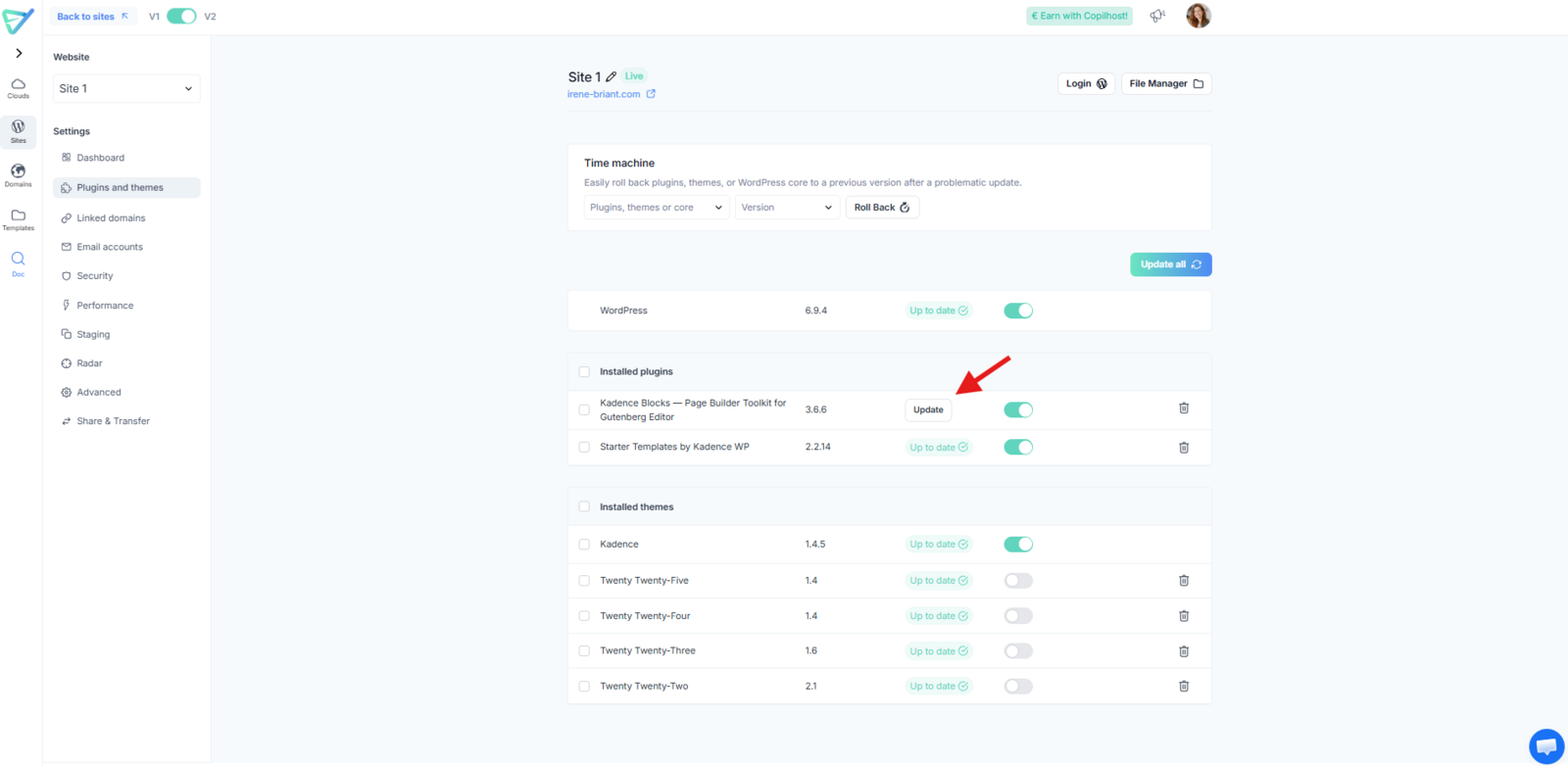
- Simply click the button to run the update instantly.
- When the status shows "Up to date" with a green icon, it means everything is running the latest version.
Activating or Deactivating a Theme
The theme currently in use on your site is identified by the green toggle switch.
If you have multiple themes installed, you can activate another one by clicking its toggle.
This will automatically switch the active status to the new theme and deactivate the previous one.
Activating or Deactivating a Plugin
Active plugins are identified by a green toggle switch.
- To deactivate a plugin, click the toggle to turn it off.
- To activate a plugin, click the toggle so it turns green.
Deleting a Theme or Plugin
To permanently remove an item, click the "Delete" button on the right. A confirmation pop-up will appear to finalize your choice.
⚠️ Note: You cannot delete a theme that is currently Active. You must activate a different theme first before the delete option becomes available for the old one.