
What are Cron Jobs?
Cron jobs allow you to schedule regular automated tasks on your website.
Most WordPress plugins install their own cron jobs to function correctly (e.g., scheduling posts, sending newsletters, or cleaning databases).
Why move to Server-Side Cron?
By default, WordPress uses "WP-Cron," which only runs when someone visits your site. If your site has low traffic, tasks may be delayed or missed.
Server-side cron jobs, however, are handled directly by the hosting environment.
They trigger precisely at the scheduled interval, regardless of whether your site has visitors or not.
Step 1: Disable the default WordPress Cron
👉 To use server-side cron jobs, you must first disable the built-in WordPress system.
Open your site settings in the Copanel and go to the "Advanced" tab. Click "Open File Manager" :
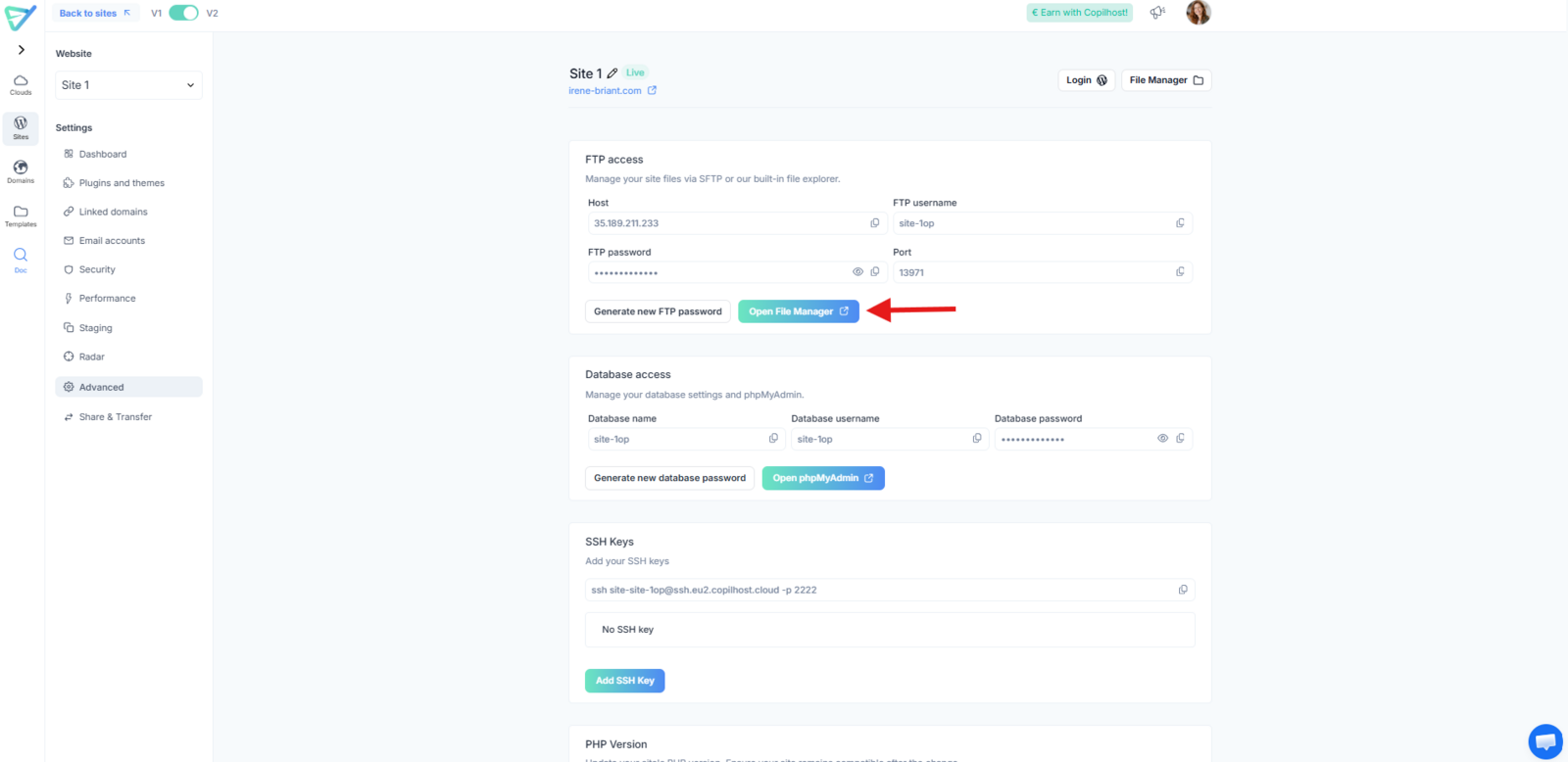
Then, navigate to the "HTML" folder and find the wp-config.php file and double-click the file to open the editor.
Find the line that says: /* That's all, stop editing! Happy blogging. */
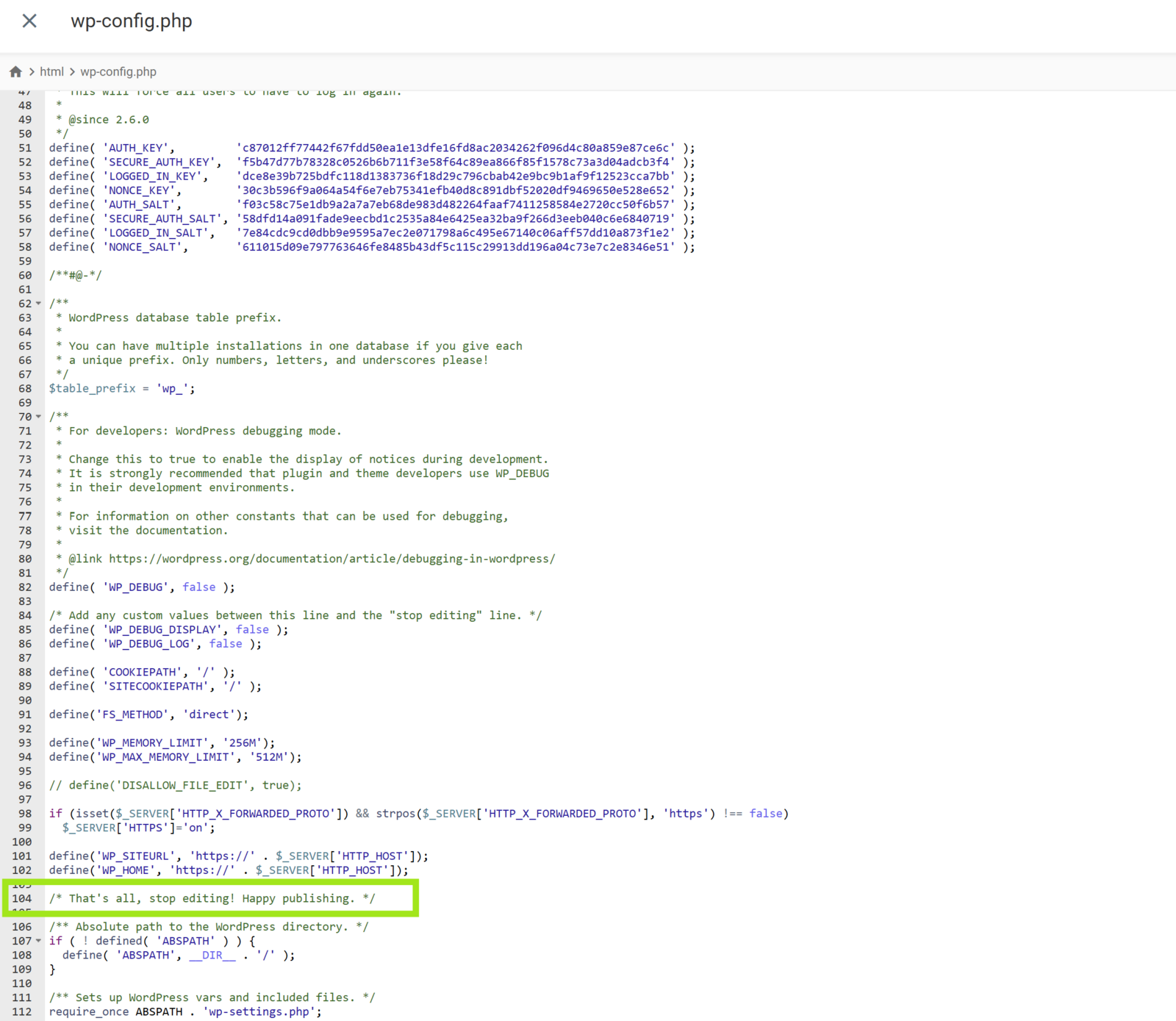
Paste the following line of code just above it: define('DISABLE_WP_CRON', true);
Click the Save icon (top right) and close the file.
Step 2: Set up the Server-Side Cron
Now that the default system is disabled, you need to tell the server to run the tasks manually.
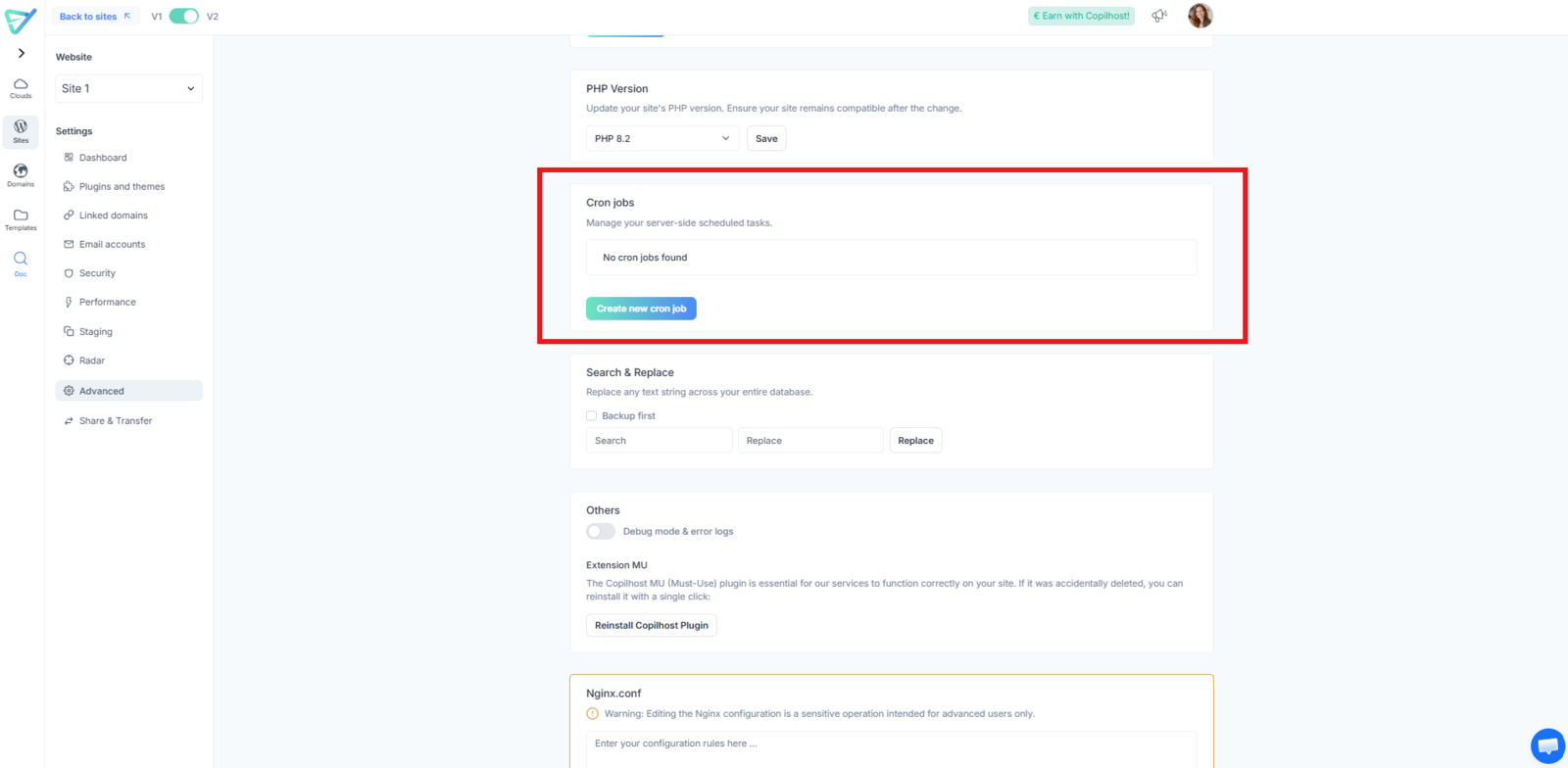
- In your Copanel, go to "Advanced" > "Cron Jobs".
- Click "Create a new Cron job". A pop-up will appear.
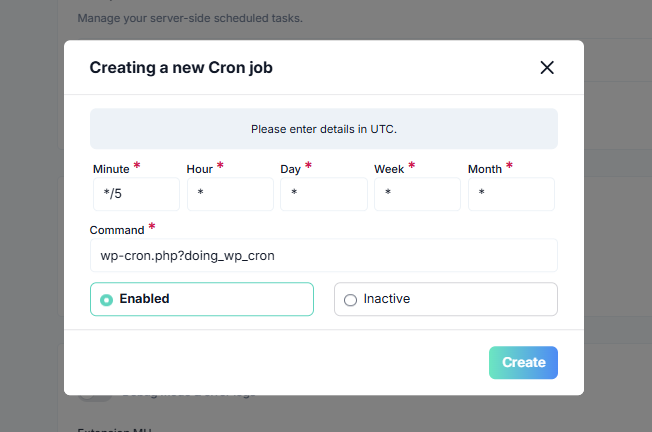
- In the Command field, enter:
wp-cron.php?doing_wp_cron
Fill in the schedule fields. To run the tasks every 5 minutes (recommended), enter:
*/5 in the Minute field and * in all other fields (Hour, Day, Week, Month).
- Ensure the status is set to "Enabled".
- Click "Create".
Note: The
*symbol means "every." Using*/5in the minute field tells the server to trigger the script every 5 minutes.
Managing your Cron Jobs
- You can create multiple cron jobs for different scripts if needed.
- If you want to prepare a command without running it yet, select "Inactive". You can reactivate it later from the Cron Jobs list.