
The Copilhost MCP Server allows any artificial intelligence tool — Claude, ChatGPT, n8n, Make — to connect directly to your WordPress and interact with it: read your content, manage your plugins, trigger backups, and much more.
In practice, instead of copying and pasting information between your AI and your site, you connect the two once and for all. Then you ask your question or give your instruction directly to the AI, and it does the work.
The three MCP server levels
Copilhost offers MCP servers at three different levels, each giving access to a distinct scope of action.
Site Level
Accessible from an individual site’s settings (Settings → MCP Server), this level gives your AI access to the tools of that specific site: WordPress information, active plugins, themes, FTP, database, backups, cache, staging…
This is the most common entry point. If you want an AI to manage a specific site, this is the level you need.
Cloud Level
This level covers all the sites in a cloud. It allows you to list and create sites, manage templates, and perform actions across multiple sites from a single connection.
This is particularly useful if you manage multiple projects in the same cloud and want to control them all from your AI.
Account Level
The account level offers a global view of your entire Copilhost workspace: all your clouds, all your sites, all your resources. This is the most powerful level, best reserved for advanced use cases.
Enabling your MCP server
Activation takes place from the Copilhost dashboard, in the settings for the level you want to use.
To enable it at the site level:
- Open the relevant site in your dashboard
- In the left menu, click on MCP Server
- Enable the toggle
- Copy the URL that appears
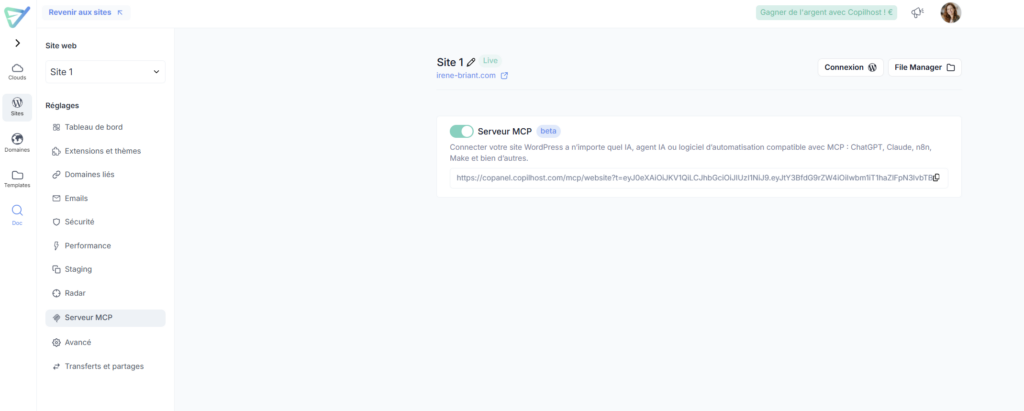
The URL looks like this:
https://copanel.copilhost.com/mcp/website?t=...⚠️ This URL contains a unique authentication token specific to your site. Do not share it publicly.
Connecting your MCP server to your AI tools
With Claude
Claude (available at claude.ai or via the desktop app) natively supports the MCP protocol through its connector system.
To add your Copilhost server:
- Open Claude and go to Settings
- Navigate to the Connectors section
- Click Add a connector
- Paste your Copilhost MCP server URL
- Give it a recognizable name (e.g. My WordPress site)
- Confirm
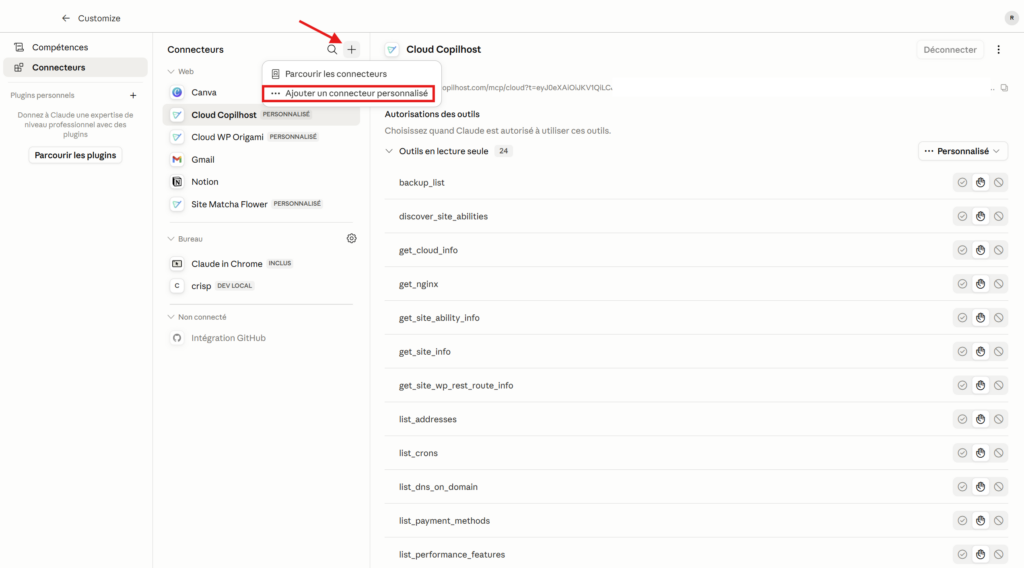
Once connected, you can ask Claude, for example:
- “Which plugins are active on my site?”
- “Create a backup now”
- “Enable maintenance mode”
- “List published posts”
Managing permissions in Claude
By default, Claude asks for your confirmation before executing each action via the MCP server. You can fine-tune this behavior tool by tool, from the connector settings.
Claude distinguishes between two types of operations:
- Read-only (listing sites, reading information, checking plugins…) — you can allow these automatically without any risk.
- Write operations and actions (creating a backup, purging cache, enabling maintenance, modifying settings…) — it is recommended to keep manual confirmation for these.
To configure connector permissions:
- Go to Claude’s Settings
- Open the Copilhost connector
- For each listed tool, choose Always allow or Always ask
💡 A common setup: allow everything automatically for read operations, and keep a confirmation prompt for actions that modify your site.
With ChatGPT
The ChatGPT desktop app also supports the MCP protocol. The connection is made from the app’s settings.
- Open the ChatGPT desktop app
- Go to Settings
- Navigate to the Connectors section (or MCP Servers depending on the version)
- Click Add
- Paste your Copilhost MCP server URL
- Confirm
💡 This feature is only available in the ChatGPT desktop app, not from the browser.
The same principle applies to n8n, Make, and any other MCP-compatible tool: paste the URL in the tool’s integration settings.